How to Print WhatsApp Messages (Export, Email or PDF)
How to print WhatsApp messages: export a chat on iPhone, Android or WhatsApp Web, email it to yourself, and turn it into a dated, numbered PDF for free.
Part of our guide: How to Print and Export Text Messages
To print WhatsApp messages, open the chat, use Export chat to save the conversation as a text file, then print that file or turn it into a PDF. WhatsApp has no print button, so exporting is the way to get a whole conversation out with the date, time and sender of each message.
This guide covers Export chat on iPhone, Android and WhatsApp Web, how to email the export, when screenshots are enough, and how to make a dated, numbered PDF for free. Each step is checked against the WhatsApp Help Center.
Part of our guide to printing and exporting your texts.
The quick answer
- iPhone: open the chat, tap the contact or group name, tap Export chat.
- Android: open the chat, tap the three-dot menu, then More > Export chat.
- WhatsApp Web: open the chat, click the three-dot menu, then Export chat.
- To email it: pick your email app when WhatsApp asks where to send the export.
- To print it as a clean PDF: drop the .txt file into our free texts-to-PDF tool.
How to export a WhatsApp chat on an iPhone
These steps are from WhatsApp's iPhone export guide.
- Open the individual or group chat.
- Tap the contact's name or the group name at the top.
- Tap Export chat.
- If the chat has photos or videos, choose With all media, With selected media…, or Without media.
- Choose where it goes, such as Save to Files, Messages or Notes.
Good to know:
- The chat is exported as a ZIP file. The conversation itself is a text file inside it.
- View once messages are not exported.
- The export can't be imported back into WhatsApp. It's a copy, not a backup.
If you plan to print, choose Without media. It keeps the file small, and the words, dates and names are all there.
How to export a WhatsApp chat on Android
These steps are from WhatsApp's Android export guide.
- Open the individual or group chat.
- Tap the three-dot menu in the top corner.
- Tap More, then Export chat.
- Tap Without media or Include media.
- Choose how to share it, such as Gmail, Quick Share or Chat.
If you choose Include media, WhatsApp says the most recent media will be attached alongside the chat, not every photo ever sent. For a printout, Without media is the simpler choice.
How to export a chat from WhatsApp Web
WhatsApp Web can export too, and it adds one thing the phone doesn't: a date range. These steps are from WhatsApp's web export guide.
- Open the individual or group chat.
- Click the three-dot More options menu, then Export chat.
- Select All messages or Custom date range.
- Click Export.
The export downloads as a ZIP file. Photos and videos aren't included from the web, and view once and disappearing messages aren't exported. If you only need the months that matter, the date range keeps the printout short.
How to email WhatsApp messages
WhatsApp doesn't send email itself. It hands the export to an app you choose, so emailing is part of the export.
- Start Export chat on your phone, using the steps above.
- Choose Without media unless you need the photos.
- Android: pick Gmail (or your email app) from the share options. iPhone: pick your email app if it appears, or choose Save to Files and attach the file to an email from there.
- Send it to yourself first. Then you have a copy off the phone, and you can open it on a computer.
A chat exported with media can be large, and email services limit attachment size. If the email won't send, export again Without media.
Screenshots: fine for a few messages
For a short exchange, screenshots work. Open the chat, take a screenshot the usual way on your phone, and overlap each one a little so nothing is skipped.
The problems show up with longer chats:
- Dozens of images become hundreds.
- Many screenshots show a time but no full date.
- Images are easy to crop, so the other side may question them.
If you have a computer handy, WhatsApp Web gives you a bigger screen for clearer screenshots. For anything long, export the chat instead.
Printing the raw export
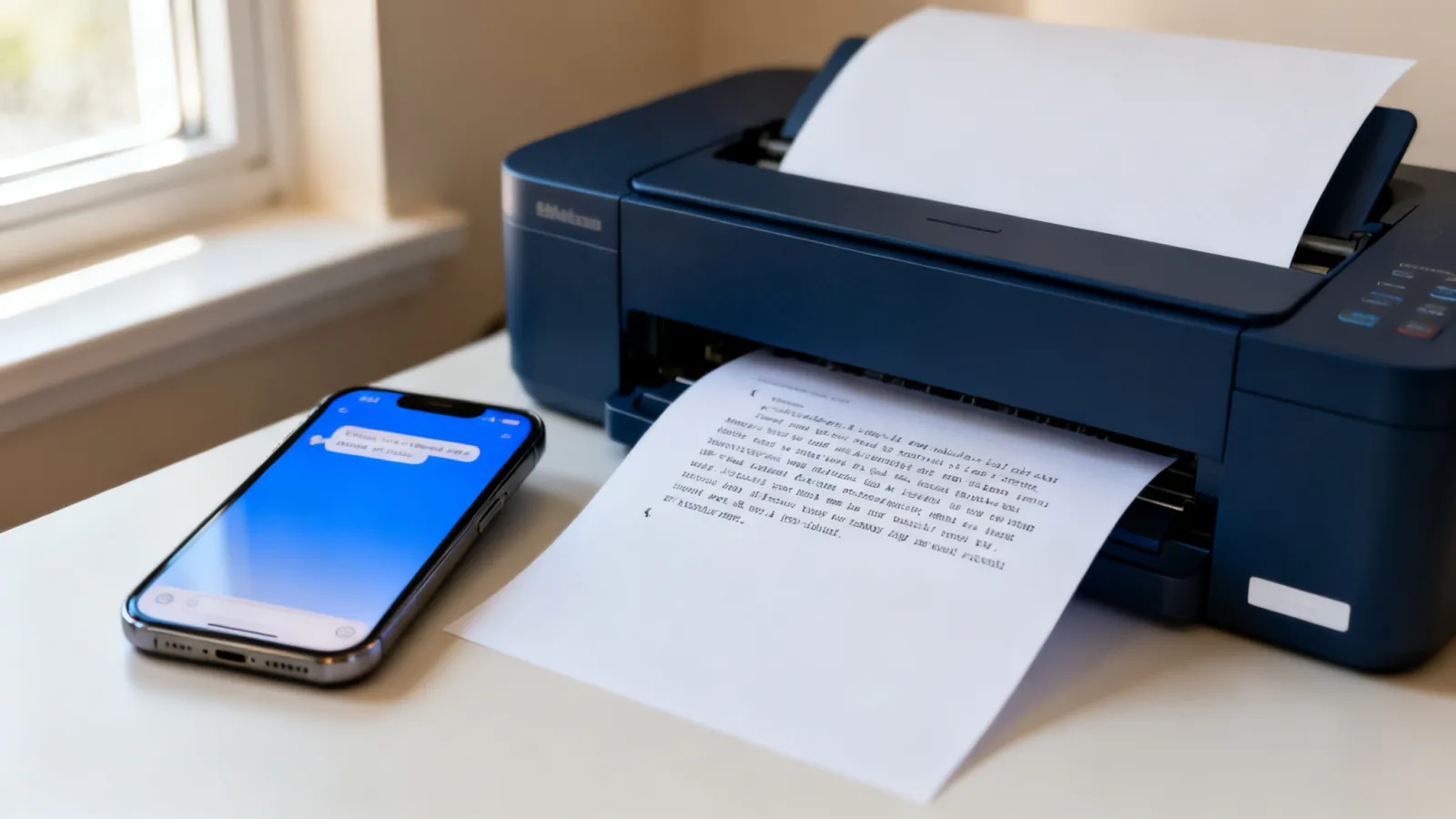
You can open the .txt file and print it from any text editor. It works, but it's a wall of text: no page numbers, no line numbers, and long messages run together. It's hard for anyone else to find "the message from March 3."
The free way: a dated, numbered PDF
Our free texts-to-PDF tool reads a WhatsApp chat export and turns it into a clean PDF.
- Export the chat Without media.
- If you got a ZIP file, unzip it and find the .txt file inside.
- Open textevidence.ai/tools/texts-to-pdf and choose the .txt file.
- Check the preview, then download the PDF.
Every message shows its date, time and sender. Each line is numbered and each page is numbered, so you, your lawyer or anyone else can point to an exact line. The first 50 messages are free, and you don't need an account. The file is read in your browser and isn't uploaded.
The PDF holds the words of the chat. It doesn't include WhatsApp photos or videos, so keep the full export with media saved separately if those matter.
If the conversation also happened over regular texts, the same tool reads an iPhone backup or an Android SMS Backup & Restore file. See how to print text messages from iPhone and how to print text messages from Android.
If the printout is for court
This is general information, not legal advice.
Your lawyer or the court's self-help center can tell you what your court expects. In general, a printout is easier to work with when it shows who sent each message, the date and time, and the whole conversation for the period that matters, not single messages pulled out of context. Keep the original chat on your phone. Our guide on how to print text messages for court covers organizing what you print.
Frequently asked questions
Can you print WhatsApp messages directly from the app?
No. WhatsApp has no print option. Use Export chat to save the conversation as a file, then print that file or turn it into a PDF.
How do I export a WhatsApp chat to PDF?
Export the chat Without media, unzip it if needed, and open the .txt file in our free texts-to-PDF tool. It makes a PDF with the date, time and sender of every message.
Does a WhatsApp export include photos?
On a phone, it can. On an iPhone, choose With all media or With selected media…; on Android, choose Include media. Exports from WhatsApp Web never include media.
Can I export only part of a WhatsApp chat?
On WhatsApp Web, yes: choose Custom date range before you click Export. WhatsApp's phone export steps don't include a date range option.
Can I import an exported chat back into WhatsApp?
No. WhatsApp says the export is a text file, not a backup, so it can't be re-imported. To move chats between phones, use a backup. Our guide on how to back up WhatsApp messages covers that.
Why are some messages missing from my export?
View once messages are never exported, and from WhatsApp Web, disappearing messages aren't exported either. Anything deleted from the chat before you export won't be there.
Get your WhatsApp chats in order
Export the chat and make a dated PDF with the free texts-to-PDF tool. If you have WhatsApp chats, regular texts and screenshots spread across phones, TextEvidence puts them in one place where you can search every message and ask questions that come back with the exact messages cited. It's $149 a year or $19 a month, and you can try it free for 14 days, no card needed.
Ready to organize your text message evidence?
Start with the free tool, no signup required, or book a call and I'll walk through it with you.
Try the free tool
First 50 messages free, no account, no credit card. Backups are read in your browser and never uploaded.
Where are your texts?
First 50 messages free. No account. Nothing is uploaded.