How to Print Text Messages From iPhone (2026 Guide)
How to print text messages from iPhone: screenshots, Mac Print to PDF, iCloud sync, and export tools, plus what a printout for court needs to show.
Part of our guide: How to Print and Export Text Messages (iPhone & Android)
If you need to print text messages from your iPhone, you are probably not doing it for fun. Maybe a custody hearing is coming up, maybe a lawyer asked for "the texts," or maybe you just want a record of something that is weighing on you.
Here is the frustrating part: the iPhone has no Print button in Messages and no "export this conversation" option. You have to get the texts off the phone some other way. This guide walks through every real method, what each one is good for, and where each one falls short.
Part of our guide to printing and exporting your texts.
The quick answer
There are four main ways to print text messages from an iPhone:
- Screenshots of the conversation, printed from your Photos.
- A Mac, using the Messages app and File, then Print, to save a PDF.
- A desktop export tool (such as iMazing or Decipher TextMessage) that reads your iPhone or its backup and creates a PDF.
- Copy and paste or forwarding, for a few individual messages.
For a handful of messages, screenshots are fine. For a long thread, or anything going to a lawyer or a judge, a full export with dates, times, and sender names on every page is usually a better fit.
Method 1: Screenshots
Screenshots are what most people reach for first, and for a short exchange they work.
How to screenshot and print iPhone texts
- Open the conversation in Messages.
- Scroll so the messages you need are on screen.
- Press the side button and volume up at the same time (on iPhones with a Home button, press the Home button and side button).
- Repeat for each screen, overlapping a little so nothing is skipped.
- Open the screenshots in Photos, select them, tap Share, then Print. Or send them to a computer and print from there.
Where screenshots fall short
Screenshots get hard to manage fast. A month of messages can mean dozens or hundreds of images, and it is easy to miss one.
The iPhone's built-in "Full Page" screenshot option works in Safari, not in Messages, so there is no one-tap way to capture a whole thread. Some people use stitching apps or a screen recording instead.
Timestamps are another problem. Messages only shows times in small headers between groups of texts, so many screenshots end up with no date visible at all. You can swipe left on a conversation to reveal the time of each message, but you have to hold the swipe while you capture.
Screenshots are also easy for the other side to question, since a single image can be cropped or edited. For more on that, see our article on whether text message screenshots are admissible in court.
Method 2: Print to PDF from a Mac
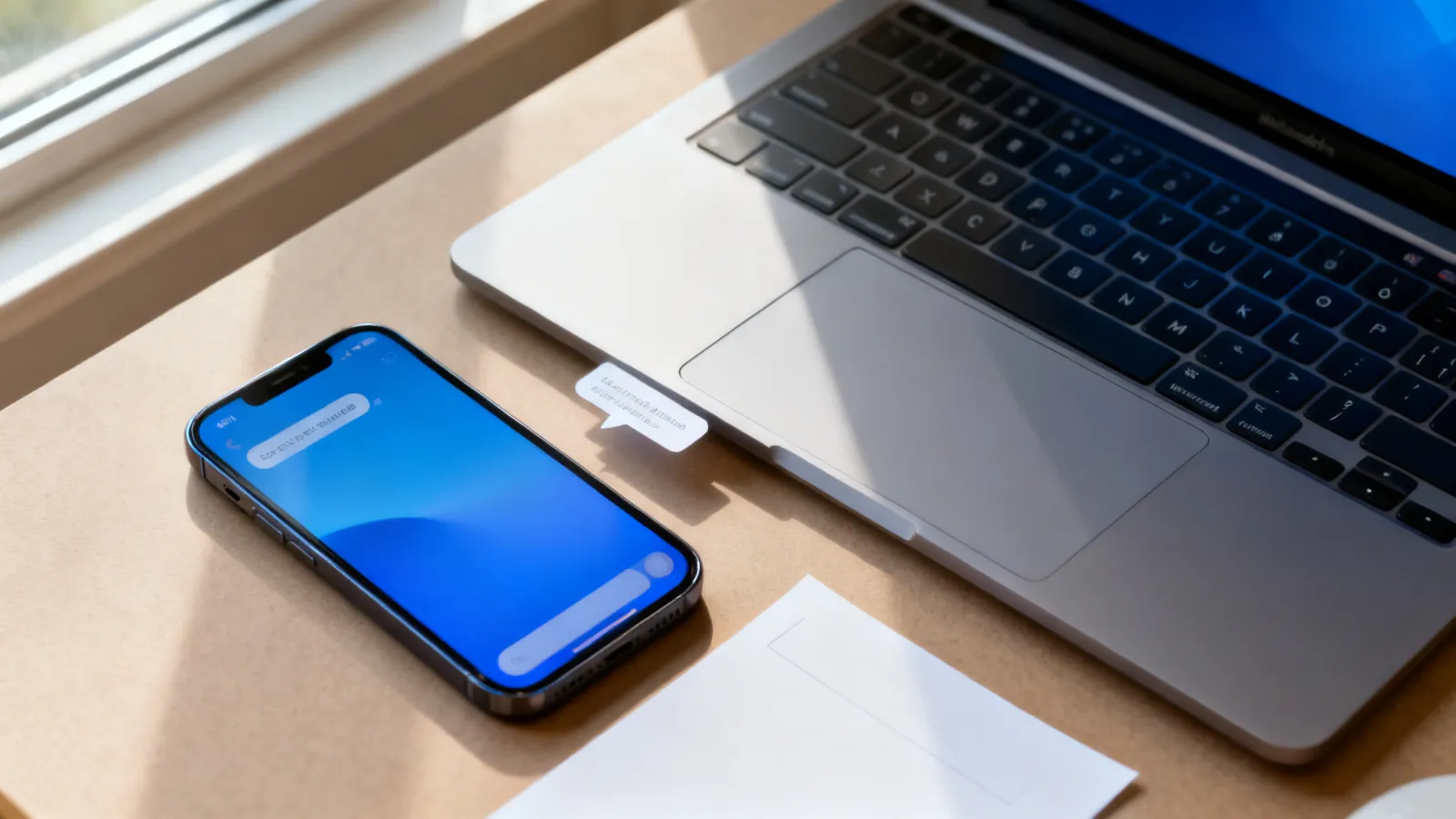
If you have a Mac, this is the best free method Apple offers. The Mac's Messages app can print a conversation or save it as a PDF.
Step 1: Get your texts onto the Mac
Your messages need to be on the Mac first. There are two pieces to this:
- Messages in iCloud. On your iPhone, go to Settings, tap your name, then iCloud. Tap See All (or Show All), then Messages in iCloud, and turn on Use on this iPhone. On the Mac, open Messages, go to Messages, then Settings, then iMessage, and check Enable Messages in iCloud. Both devices need to be signed in to the same Apple Account.
- Text Message Forwarding for green-bubble texts (SMS, MMS, and RCS from Android users). On the iPhone, go to Settings, then Apps, then Messages, then Text Message Forwarding, and turn on your Mac. Apple notes that with Messages in iCloud on, forwarding is built in.
Give it time to sync. A large history can take a while to download, especially over a slow connection.
Step 2: Load the full conversation
Open the conversation on the Mac and scroll all the way up to the beginning of the time period you need. Older messages often load only as you scroll, and anything not loaded may not end up in the printout.
Step 3: Print or save as PDF
- With the conversation open, choose File, then Print (or press Command-P).
- To print on paper, pick your printer and click Print.
- To make a PDF, use the PDF menu at the bottom of the print window and choose Save as PDF.
Things to check in your Mac PDF
Look over the PDF before you hand it to anyone. The printout mirrors the Messages window, so times may appear as headers between groups of messages rather than next to every message. Users have also reported that the contact's name does not always appear at the top of each page.
One more caution: with Messages in iCloud on, deleting a message on one device deletes it everywhere. Do not tidy up conversations on your Mac while you are working on this.
Method 3: Desktop export tools (Mac or Windows)
Several paid desktop programs read your iPhone, or a backup of it, and export conversations to PDF and other formats. Two of the best known are iMazing and Decipher TextMessage. Both run on Mac and Windows.
iMazing. You connect your iPhone, open Messages, select the conversations or messages you want, and print or export them. According to iMazing's own guide, the printout can include attachments and an optional footer with page numbers, the iPhone's name and serial number, the export date, and the date the Messages database was last modified. Attachments that iOS has stored in iCloud instead of on the phone may show up as a note rather than the actual file.
Decipher TextMessage. You back up the iPhone to your computer, pick a contact, and choose Export, then a PDF option. The company says its PDFs show a date and time on each sent and received message, and it also offers date-range exports, HTML, plain text, and CSV.
Pros and cons of export tools
- Pros: whole conversations at once, timestamps on messages, photos included, and no need for a Mac with iCloud sync.
- Cons: paid software, a learning curve, and a computer backup to manage. Check current pricing and what the free or trial version allows before you buy.
Making an iPhone backup on your computer
Most export tools work from a local backup. On a Mac, connect the iPhone, open Finder, select the iPhone in the sidebar, and click Back Up Now. On Windows, use Apple's Apple Devices app (or iTunes on older versions of Windows) and choose to back up to the computer.
If you turn on Encrypt local backup, write the password down somewhere safe. You will need it later, and Apple cannot recover it for you.
Method 4: Copy and paste, or forward
For one or two messages, you can press and hold a message, tap Copy, and paste it into Notes or an email. You can also press and hold, tap More, select several messages, and tap the forward arrow to send them on.
This is fine for a quick note to yourself. It is weak for anything formal. Pasted text loses the time and sender, and you are copying one bubble at a time.
How to export text messages from iPhone to PDF: which method fits?
| Your situation | Best fit |
|---|---|
| A few messages, no deadline pressure | Screenshots |
| You own a Mac and the thread is a few weeks long | Mac Messages, Print to PDF |
| A long thread, months or years | Desktop export tool or an evidence app |
| Photos and videos in the thread matter | Export tool or evidence app |
| You only need one quote | Copy and paste |
What courts look for in printed text messages
This is general information, not legal advice. Rules vary by state, and your attorney or the court's self-help center can tell you what your court expects.
Whatever method you pick, a printout that holds up well usually shows:
- Who sent each message, by name and phone number or email address.
- The date and time of each message, not just a few headers.
- The complete conversation for the relevant period, not hand-picked bubbles. Leaving out the messages before and after a hurtful text invites the question "what came before this?"
- Nothing cropped or edited. Keep the original phone and the original conversation untouched.
- Photos and attachments where they are part of the exchange.
You may also be asked to explain how you made the printout and to say under oath that it matches what is on your phone. Our article on how to authenticate iPhone text messages for court explains what that usually involves, and the broader guide to using text messages as evidence covers the rest.
For more on formatting and organizing exhibits, see how to print text messages for court.
An easier way for long threads
If you are staring at a thread that goes back months, screenshots stop being realistic. That is the problem we built TextEvidence to solve.
You can bring in your messages a few ways: an iPhone backup folder from your computer (TextEvidence finds the Messages database inside it, including photos), the Messages database from a Mac (the chat.db file), or screenshots and screen recordings of a conversation if that is all you have. For backups, use one made without the "Encrypt local backup" option. Every message keeps its date, time, and sender.
From there you can search the whole history, ask questions in plain English like "when did we talk about the school pickup schedule," and export a PDF with timestamps and sender names on every message. It does not replace a lawyer, and it does not decide what a court will admit. It just turns a phone full of texts into something organized you can actually hand over.
Co-parenting with someone on Android? Our guide on how to print text messages from Android covers their side.
Frequently asked questions
Can I print text messages directly from my iPhone?
Not as a full conversation. The Messages app on iPhone has no print or export option for a thread. You can print screenshots from the Photos app, or use a Mac or a desktop tool to print the whole conversation.
How do I print a whole text conversation from my iPhone for free?
The free route is a Mac. Turn on Messages in iCloud on both devices, let the conversation sync, scroll to the start of the period you need, then choose File, then Print, and save as a PDF. Without a Mac, screenshots are the free option, though they get unwieldy for long threads.
How do I print text messages from iPhone for court?
Use a method that shows dates, times, and sender names for every message and includes the full conversation for the relevant period. A Mac PDF, a desktop export tool, or an evidence app is usually better than a pile of screenshots for this. Keep the original messages on your phone, and ask your attorney or the court's self-help center about local requirements.
Will deleted text messages show up in a printout?
Generally no. Printing and most exports show what is currently in Messages. Some paid tools say they can recover some deleted messages from a backup, but results vary and nothing is guaranteed. If a message matters, do not delete it.
Do printed texts include photos?
Screenshots show whatever photo is on screen. Mac printouts and most export tools include images in the conversation, though attachments stored only in iCloud may not come through. Check the finished PDF to make sure the photos you need are there.
Do I need to print texts on paper, or is a PDF enough?
It depends on your court and whether you are filing electronically. Many people make a PDF first, since you can print it any time and also email it to a lawyer. Ask your attorney or the clerk what format they want.
Get your texts organized
You do not have to screenshot your way through months of messages at midnight. Start with TextEvidence to import your iPhone texts, search them, and export a clean, dated PDF with every date, time, and sender in place.
Ready to organize your text message evidence?
Start with the free tool, no signup required, or book a call and I'll walk through it with you.
Try the free tool
Free to 1,000 messages, browser-only, nothing leaves your device. No account, no credit card.
Where are your texts?