How to Export iPhone Messages to Your Computer (or a PDF)
How to export iPhone messages to a computer or PDF: Mac Messages with iCloud, a Finder or Apple Devices backup, export apps, and a free texts-to-PDF tool.
Part of our guide: How to Print and Export Text Messages
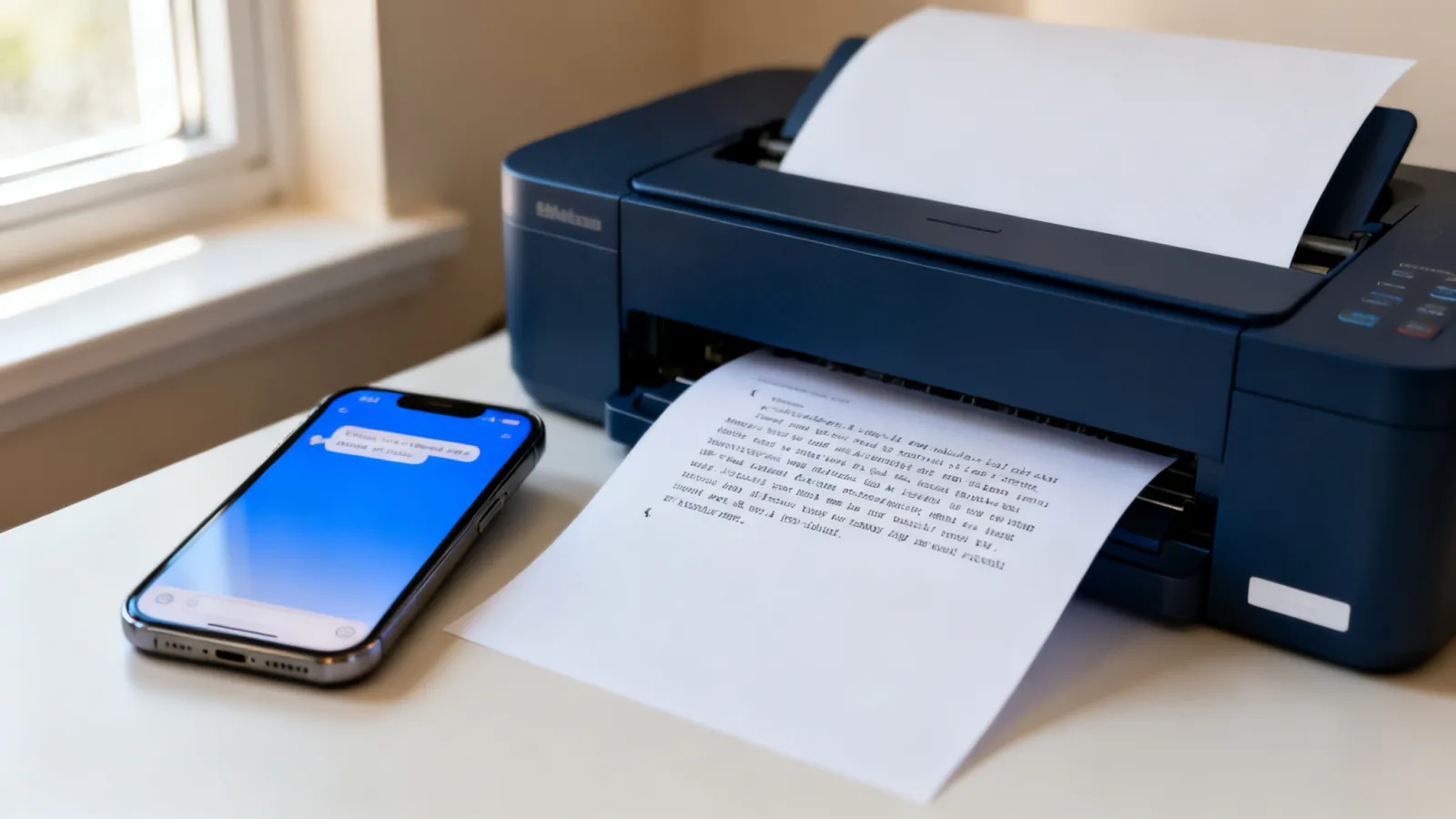
The iPhone has no "export" button in Messages, so to export your texts you first copy them to a computer, either by syncing them to a Mac with Messages in iCloud or by making a local backup of the iPhone. From there you can print a conversation to PDF on the Mac, or open the backup with an export tool that turns your messages into a PDF or a spreadsheet.
Which route fits depends on the computer you have and how much of the conversation you need. This guide walks through each one, step by step, using Apple's own instructions.
Part of our guide to printing and exporting your texts.
The quick answer
- You have a Mac: turn on Messages in iCloud, let your history sync, open the conversation in Messages, then choose File, then Print, then Save as PDF.
- You have a Mac or a Windows PC and want everything: back up the iPhone to the computer with Finder (Mac) or the Apple Devices app (Windows). The backup holds your messages.
- You want a PDF from that backup: drag the backup into our free texts-to-PDF tool, or use a paid desktop app such as iMazing or Decipher TextMessage.
- You have no computer: the free tool also takes a screen recording of you scrolling the conversation.
Method 1: Sync to a Mac, then save as PDF
If you have a Mac, Apple's free route is to sync your messages to it and print the conversation from the Messages app.
Step 1: Turn on Messages in iCloud
According to Apple's iCloud guide:
- On your iPhone, go to Settings, tap your name, then iCloud.
- Tap See All (or Show All), tap Messages in iCloud, then turn on Use on this iPhone.
- On your Mac, open Messages and choose Messages, then Settings.
- Click iMessage, then select Enable Messages in iCloud.
Both devices need to be signed in to the same Apple Account. Apple notes that when you first turn this on, it may take some time for all your messages to appear.
Messages in iCloud covers green-bubble texts too. Apple's article on forwarding texts says it keeps SMS, MMS, RCS and iMessage history up to date across your devices, so you do not need Text Message Forwarding as well.
One caution: Messages in iCloud is a sync, not a separate copy. Apple's guide to deleting messages says that deleting a message on your iPhone deletes it from all your devices that use Messages in iCloud.
Step 2: Load the whole conversation
Open the conversation on your Mac and scroll up to the start of the period you need. Older messages load as you scroll, so give it a moment.
Step 3: Save it as a PDF
From Apple's Mac guide:
- With the conversation open, choose File, then Print.
- Click the PDF button, or open the PDF pop-up menu and choose Save as PDF.
- Enter a name and choose where to save the file.
Look over the PDF before you send it anywhere. The printout follows the Messages window, so dates and times often appear as headers between groups of messages rather than next to each one. Our post on how to print text messages from iPhone covers what to check.
Method 2: Back up the iPhone to your computer
A local backup copies your messages to a drive you control. It works on a Mac or a Windows PC, and it is what most export tools read.
On a Mac (Finder)
From Apple's article on backing up with your Mac:
- Connect your iPhone to your Mac with a cable.
- Open Finder and select your iPhone in the sidebar.
- If asked, click Trust, tap Trust on the iPhone, and enter your passcode.
- Click Back Up Now and wait for it to finish.
On macOS Mojave or earlier, Apple says to use iTunes instead.
On Windows (Apple Devices app)
From Apple's Apple Devices guide for Windows:
- Connect your iPhone to the PC with a cable.
- Open the Apple Devices app and select your iPhone in the sidebar.
- Select General in the sidebar.
- Select Back up all of the data on your iPhone to this computer.
- Select Backup Now. When it finishes, Manage Backups shows the backup.
About "Encrypt local backup"
Both Finder and the Apple Devices app offer an Encrypt local backup checkbox. Apple warns that you cannot use an encrypted backup without its password, so write it down if you turn it on.
If you plan to use our free texts-to-PDF tool, leave encryption off for this backup.
A backup is a folder of files, not something you can read on its own. To see your messages in it, you need a tool that opens iPhone backups. That is where the next two sections come in.
Method 3: Paid desktop export apps
Several paid programs read an iPhone or its backup and export conversations. Two well-known ones run on both Mac and Windows:
- iMazing. You connect your iPhone, pick Messages, and iMazing makes a backup to read your conversations from. Its print guide covers printing, and the company says it exports messages to PDF, Excel, CSV and RSMF. It also notes that iOS may keep some older attachments in iCloud rather than on the phone.
- Decipher TextMessage. It reads the iPhone backups already on your computer, or makes one for you. According to Decipher's guide, you pick a contact and save the conversation as a PDF, CSV, HTML or TXT file.
These tools are a good fit if you need spreadsheets or many formats. Check current pricing and what the free version allows on each company's site before you buy.
The free way: a dated PDF in your browser
If what you want is a clean PDF of a conversation, our free texts-to-PDF tool does that with no account.
- Back up your iPhone to your Mac or Windows PC (Method 2), with Encrypt local backup off.
- Open the texts-to-PDF tool and drag the backup in.
- Download your PDF.
What you get:
- The date, time and sender of every message.
- Line numbers and page numbers, so it is easy to point someone to a specific message.
- The first 50 messages free, no account needed.
- Your backup is read in your browser and not uploaded.
No computer? The tool also accepts a screen recording of you scrolling through the conversation. For that path, the screen pictures are sent to be read, so it works differently from a backup.
The same tool reads an Android SMS Backup & Restore file, a WhatsApp chat export, or a CSV or JSON file. If the other parent is on Android, our free Android app makes a dated PDF right on the phone.
Which method fits?
| Your situation | Best fit |
|---|---|
| You have a Mac and need one conversation | Messages in iCloud, then Save as PDF |
| You have a Windows PC | Apple Devices backup, then an export tool |
| You want a dated PDF without paying | Backup plus the free texts-to-PDF tool |
| You need CSV or Excel files | A paid export app |
| You have no computer | A screen recording in the free tool |
Frequently asked questions
Can I export messages straight from my iPhone?
Not as a full conversation. Messages on iPhone has no export option. You can copy single messages or take screenshots, but to export a whole thread you need a computer, or a tool that reads a screen recording.
How do I transfer text messages from my iPhone to my computer?
Two ways. On a Mac, turn on Messages in iCloud on both devices and your history syncs into the Messages app. On a Mac or a Windows PC, back up the iPhone with Finder or the Apple Devices app, and the backup holds your messages.
How do I export iPhone messages to PDF for free?
On a Mac, open the conversation in Messages and choose File, then Print, then Save as PDF. On a Mac or Windows PC, drag an unencrypted iPhone backup into our free texts-to-PDF tool for a PDF with the date, time and sender of every message. The first 50 messages are free.
Will exporting delete anything from my phone?
No. Backing up, syncing and exporting all make copies. Deleting is the risk to watch: with Messages in iCloud on, a message you delete on one device is deleted on all of them.
Does the export include deleted messages?
Generally no. Exports show what is in Messages now. Our post on whether deleted texts can be recovered explains the options and their limits.
Do exported messages include photos?
Mac printouts and most export apps include images in the conversation. Attachments that iOS keeps only in iCloud may not come through, so check the finished file.
Get your messages off the phone
You do not need to screenshot a year of texts one screen at a time. Make a free PDF from your iPhone backup in a few minutes. If you have years of messages to sort through, start a free TextEvidence trial: 14 days, no card, then search every message and ask questions about them in plain English.
Ready to organize your text message evidence?
Start with the free tool, no signup required, or book a call and I'll walk through it with you.
Try the free tool
First 50 messages free, no account, no credit card. Backups are read in your browser and never uploaded.
Where are your texts?
First 50 messages free. No account. Nothing is uploaded.